Chapter 15: Blog and News
Quick Steps
- Create a Blog Page to hold your posts.
- Create Blog Post pages under the Blog Page.
- Use the ElementBlogPosts element to show "Latest News" on other pages (like the Homepage).
Setting Up the Blog
Your site likely already has a main "News" or "Blog" page. Both Blog and Blog Post are special page types that have the Elemental extension enabled, allowing you to build content with elements.
Blog Page: - Acts as a container for blog posts - Automatically lists posts in reverse chronological order - You can add Elements to customize the layout, but the post list is handled automatically
Creating a New Post
- Navigate to your Blog page in the site tree.
- Click Add New.
- Select Blog Post as the page type.
- Content:
- Title: The headline of your article.
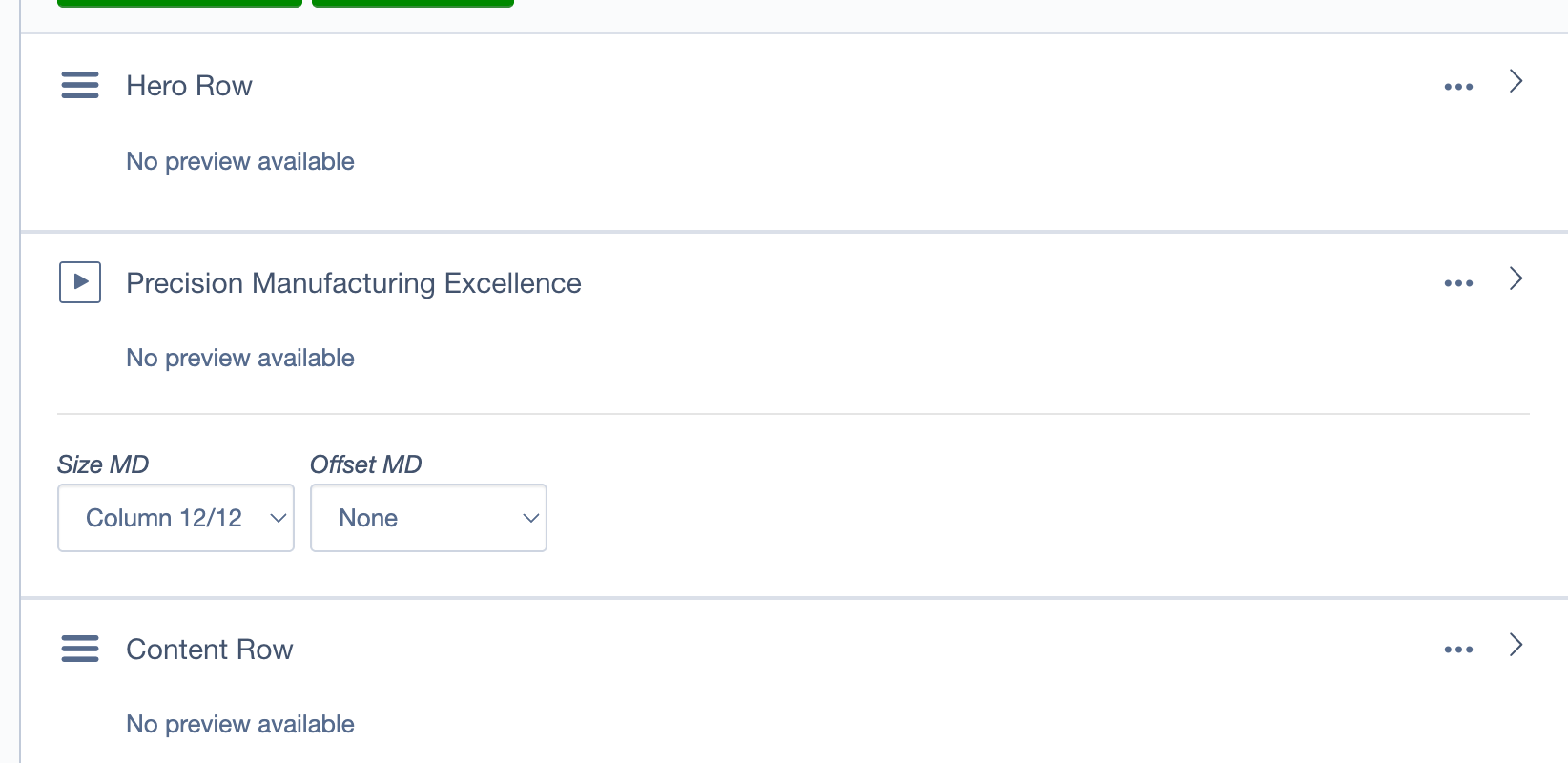
- Elements: Blog Posts have the Elemental extension enabled, so you can use standard elements (Content, Image, Video, etc.) to build your article.
- Featured Image: In the Settings (or specific "Blog") tab, upload a "Featured Image". This image appears in the news feed and on social media.
- Date: You can backdate posts or schedule them for the future.
- Author: Assign an author if needed.
- Publish: The post will automatically appear at the top of your Blog page.
Showing Posts on Other Pages
To display a "Latest News" feed on your Homepage or other pages: 1. Add an ElementBlogPosts element. 2. Configure: - Number of Posts: Choose how many to show (e.g., 3). - Category: (Optional) Filter to show only specific topics. 3. This element will automatically pull the most recent published posts.
Building Blog Content
Both Blog and BlogPost page types support the full library of content elements: - Content elements: Text, images, videos for rich article content - Media elements: Image galleries, embedded videos - Interactive elements: Accordions, cards, carousels - Layout elements: Rows and columns for custom layouts
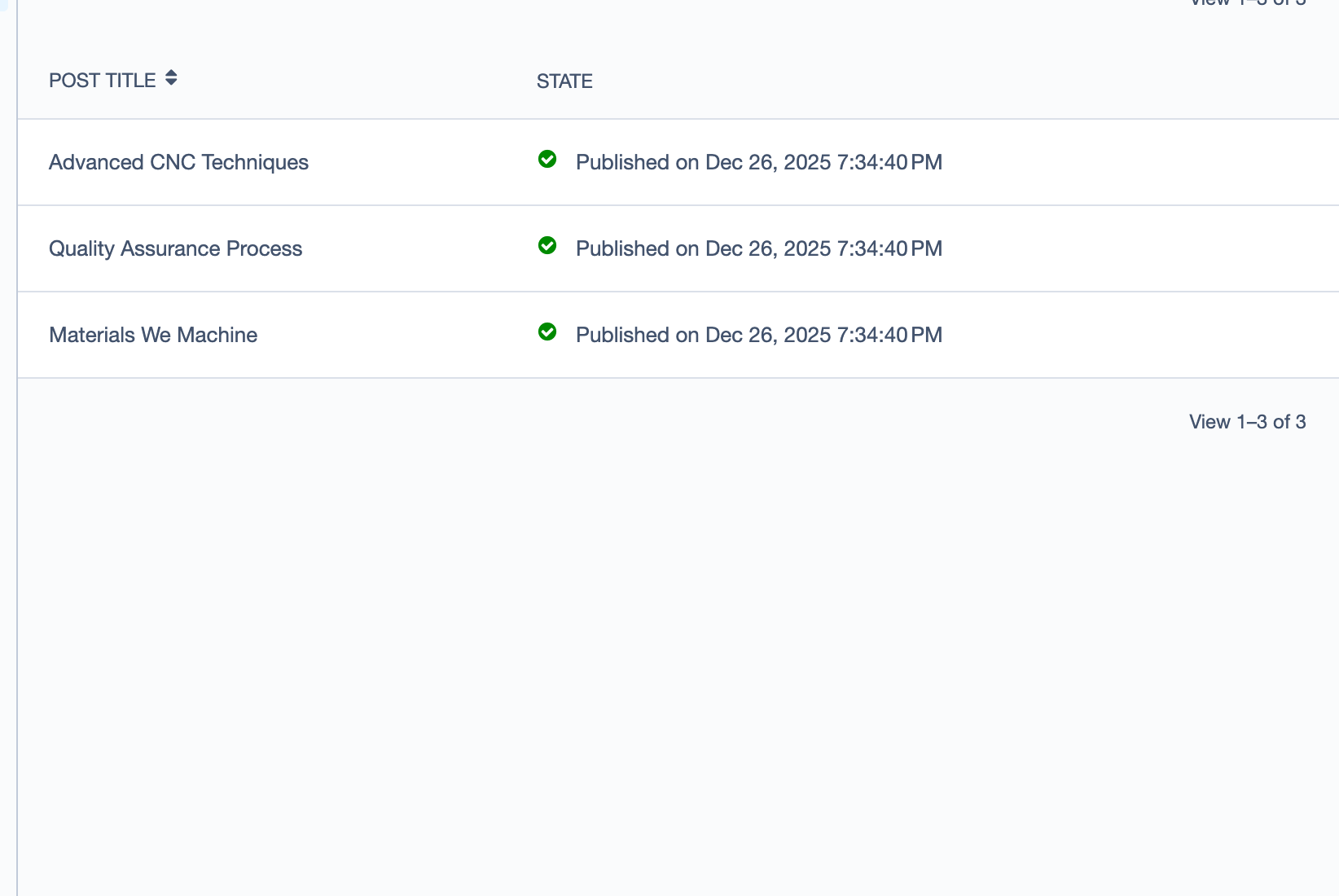
The Blog page automatically handles listing and pagination, so you can focus on creating great content!