Chapter 8 - Common Page Templates
Quick Steps
- FAQ Page: Use Accordion elements.
- Landing Page: Use Hero Banner + Features + CTA.
- Contact Page: Use Form element + Customer Service element.
Using Element Templates
The CMS now includes Element Templates for quickly building common page layouts. Access them via Add Element > Templates when editing a page. Available templates include:
- FAQ Accordion
- Service Landing Page
- Company Leadership & Governance
- Contact Page
You can use these templates as starting points, then customize the content to match your needs.
Template 1: The FAQ Page
Great for "Frequently Asked Questions".
Using the Template: 1. Create a new page (Type: Page). 2. Click Add Element > Templates > FAQ Accordion. 3. Customize the questions and answers in each panel.
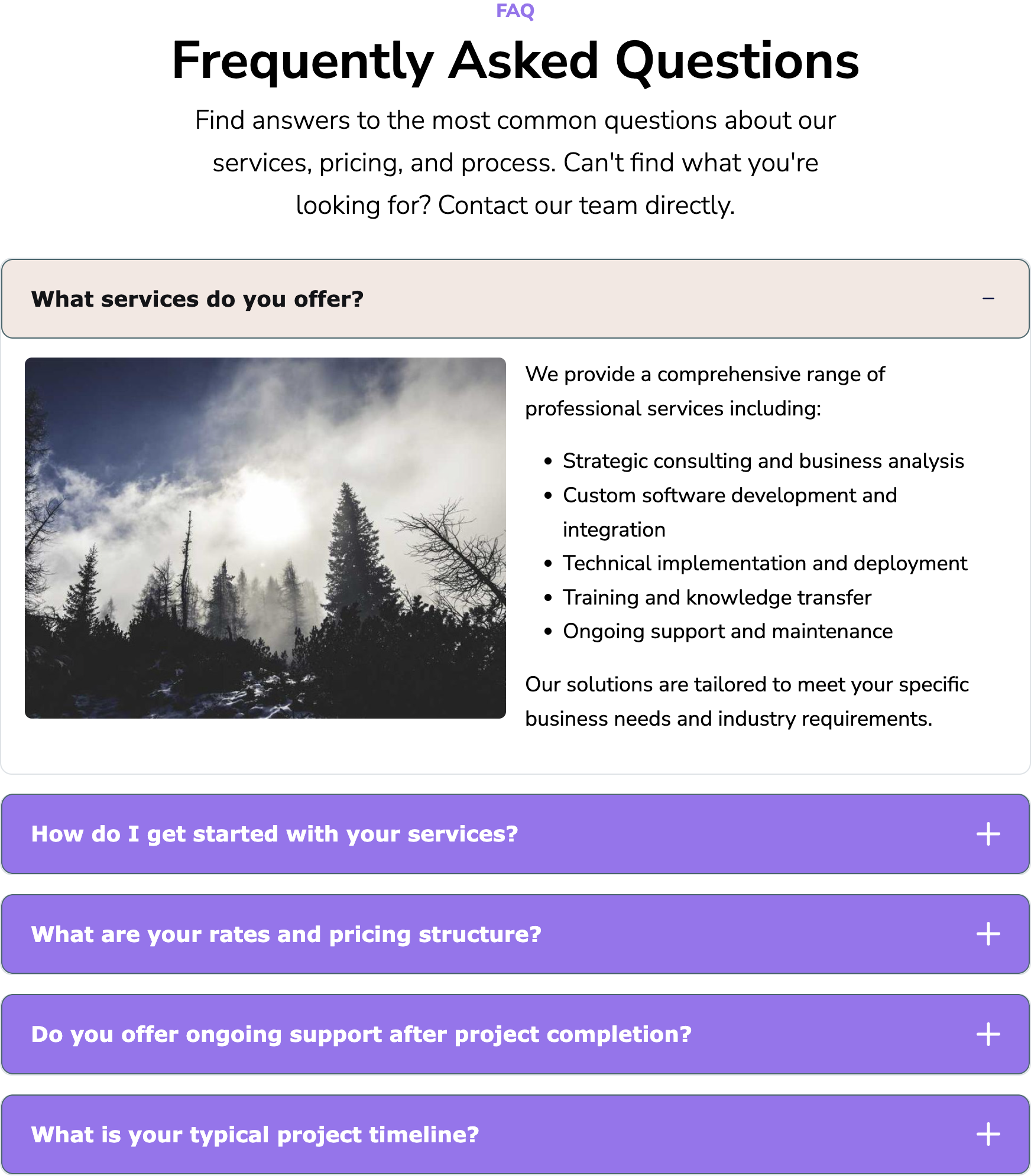
Building from Scratch: 1. Create a new page (Type: Page). 2. Add an ElementAccordion element. 3. In the element, add "Panels". 4. For each panel, enter the Question as the Title and the Answer as the Content. 5. Tip: You can add multiple Accordion elements to group FAQs by category (e.g., "Shipping", "Returns").
Template 2: The Service Landing Page
A high-impact page to sell a service.
Using the Template: 1. Create a new page (Type: Page). 2. Click Add Element > Templates > Service Landing Page. 3. Customize the hero image, feature cards, and call-to-action button.
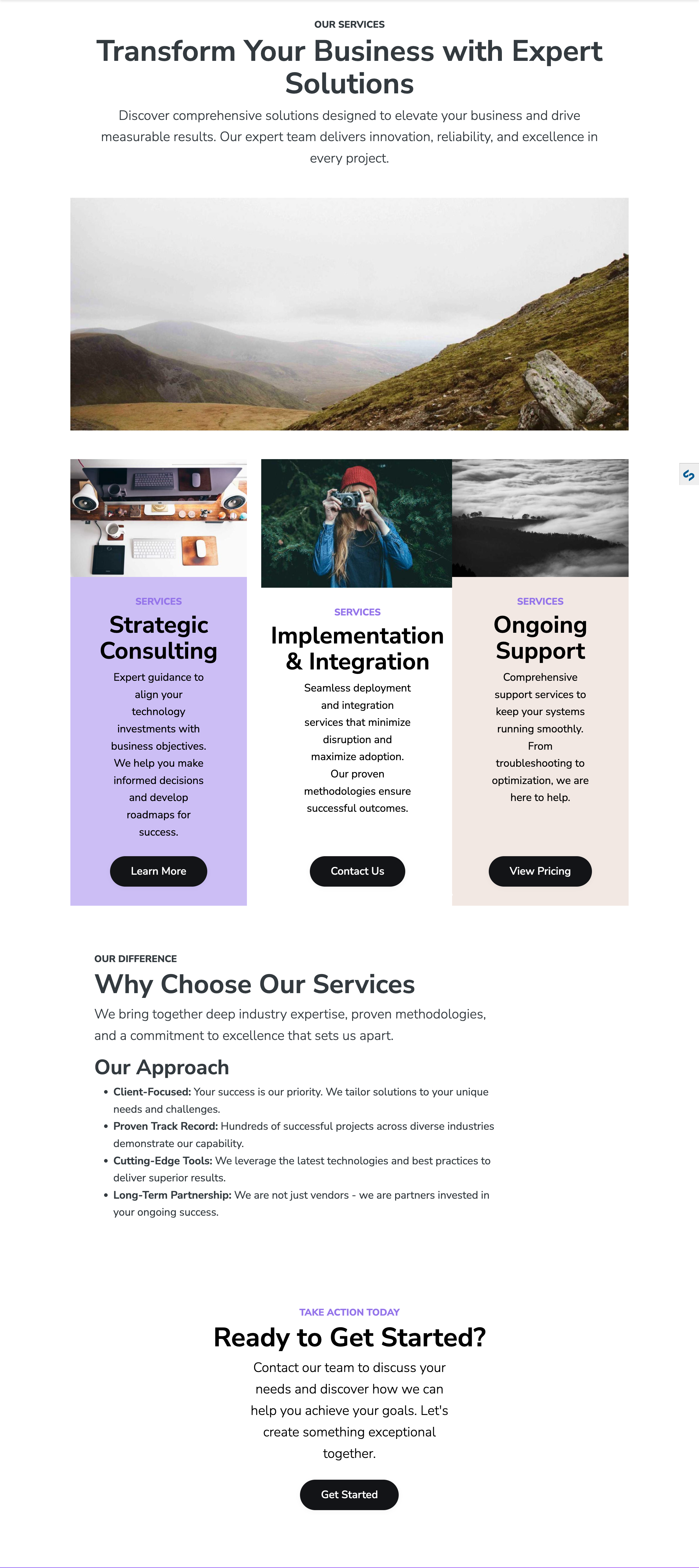
Building from Scratch: 1. Hero Section: Add a Content element. Set it to "Full Width" in settings. Add a large background image and a short, punchy headline. 2. Features: Add a Row element. Inside, add 3 ElementCard elements. Use icons for images and short descriptions. 3. Details: Add a standard Content element for the main explanation text. 4. Call to Action: Add an ElementCallToAction element at the bottom. Link it to your Contact page.
Template 3: The "Meet the Team" Page
Using the Template: 1. Create a new page (Type: Page). 2. Click Add Element > Templates > Company Leadership & Governance. 3. Update the staff member information, photos, and positions.

Building from Scratch: 1. Add a Row element. 2. Inside, add ElementStaff elements (or ElementCards if Staff is not available). 3. Upload a photo for each person. 4. Add their Name (Title), Job Title (Subtitle), and a short bio. 5. Link to their LinkedIn profile if desired.
Template 4: Contact Page
For a quick contact page setup: 1. Create a new page (Type: Page). 2. Click Add Element > Templates > Contact Page. 3. Customize the form fields and customer service information.
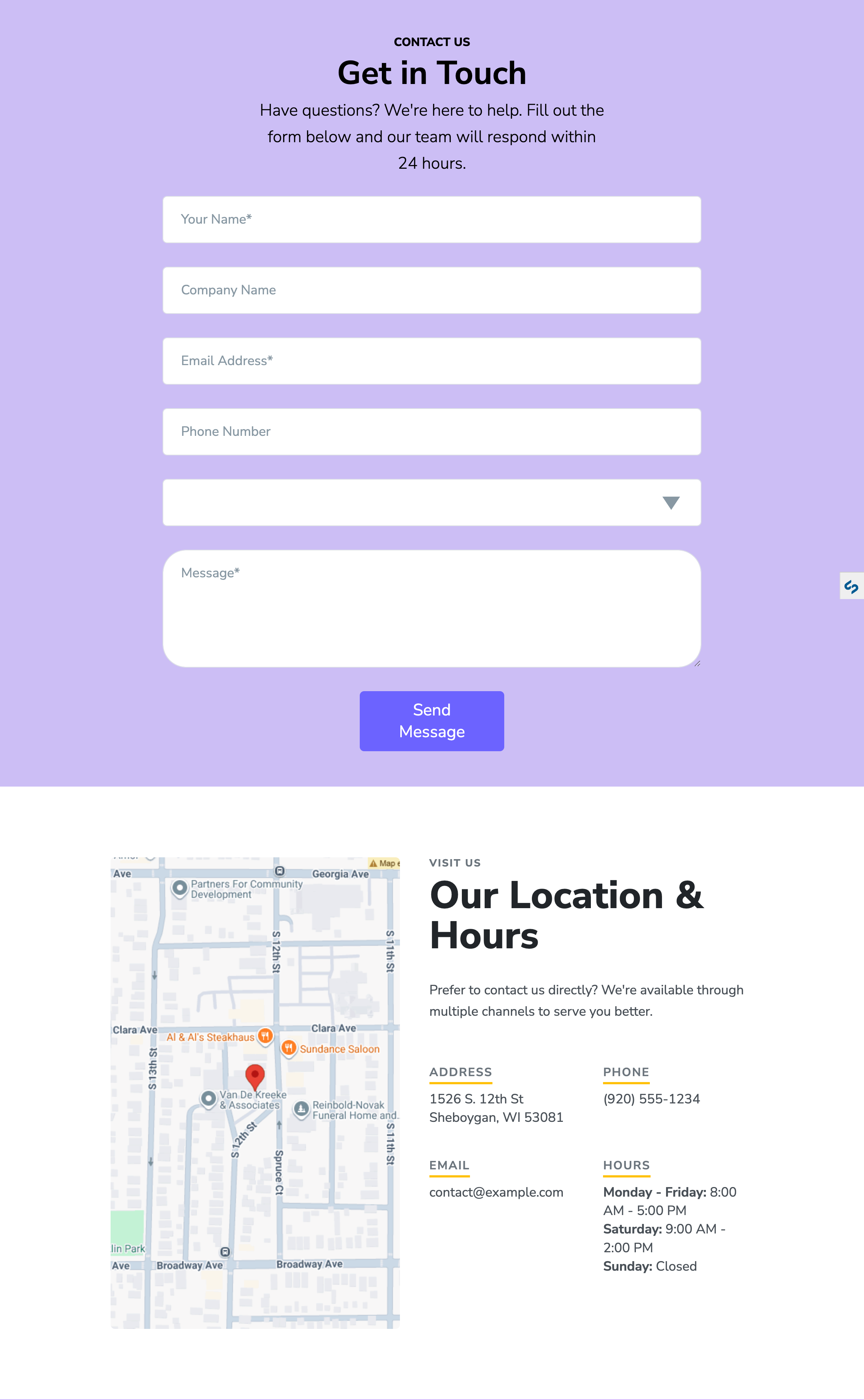
This includes a contact form and customer service details element pre-configured and ready to use.