Chapter 3: Drafts, Preview, and Publish
Quick Steps
- Save: Keeps your work safe but private.
- Preview: Check your changes (draft) without publishing.
- Publish: Makes your work live to the world.
- Use History to review versions (and roll back if needed).
The Publishing Workflow
SilverStripe uses a "Draft" vs. "Live" system to prevent accidental changes to your public website.
1. Draft (Saved)
When you make changes and click Save, you are updating the Draft version. - Who sees it? Only logged-in CMS users. - Status: You may see status indicators (e.g. “Saved”, “Modified”, or similar) until you publish.
2. Live (Published)
When you click Publish, you copy the Draft version to the Live site. - Who sees it? Everyone on the internet. - Status: The page returns to a “Published” state.

Screenshot: The bottom action bar shows whether your changes are saved and published.
Save vs Publish (plain language)
- Save = “I’m still working on this.” (Draft only)
- Publish = “Make this live.” (Draft → Live)
Tip: If you’re doing several changes (copy + image + button link), Save first, then Preview, then Publish once everything looks right.
Previewing Content
Before you publish, you should always preview your page.
Preview mode (recommended)
Preview mode lets you browse the site as a visitor would, but viewing the draft version.
- Open the page you’re editing.
- In the action bar, switch Edit mode → Preview mode.
- Use the preview pane to click around and confirm:
- headings and spacing
- links and buttons
- images (cropping and file selection)
In Preview mode you’ll typically see:
- A width selector (Auto / common device sizes)
- Links to view Draft or Published versions

Screenshot: Preview mode (with draft/published links and a preview width selector).
Common Gotchas
- "I saved my changes but I can't see them on the website!"
- Check: Did you click Publish? If you only clicked Save, your changes are still in Draft.
- "I made a mistake and want to go back."
- Use the History tab to see previous versions and, if needed, roll back.
Using History (versions)
The History tab shows the publishing history for a page. It’s useful when you need to:
- confirm when something was published
- review what changed
-
revert to a known-good version
-
Open the page.
- Click History.
- Select a record to view details (and roll back if required).
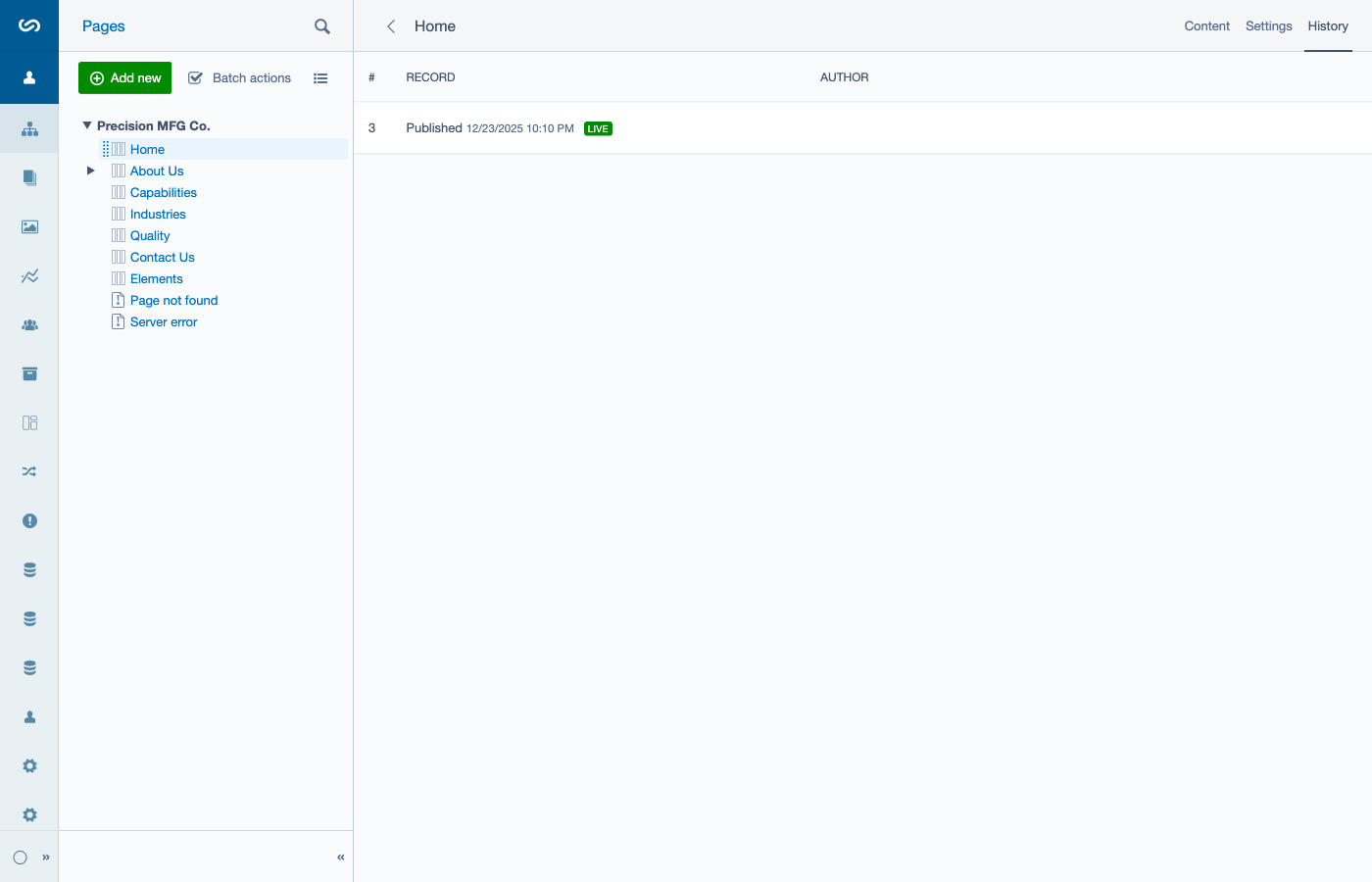
Screenshot: The History tab lists page versions (including published records).