Chapter 6: Element Templates (Presets)
Quick Steps
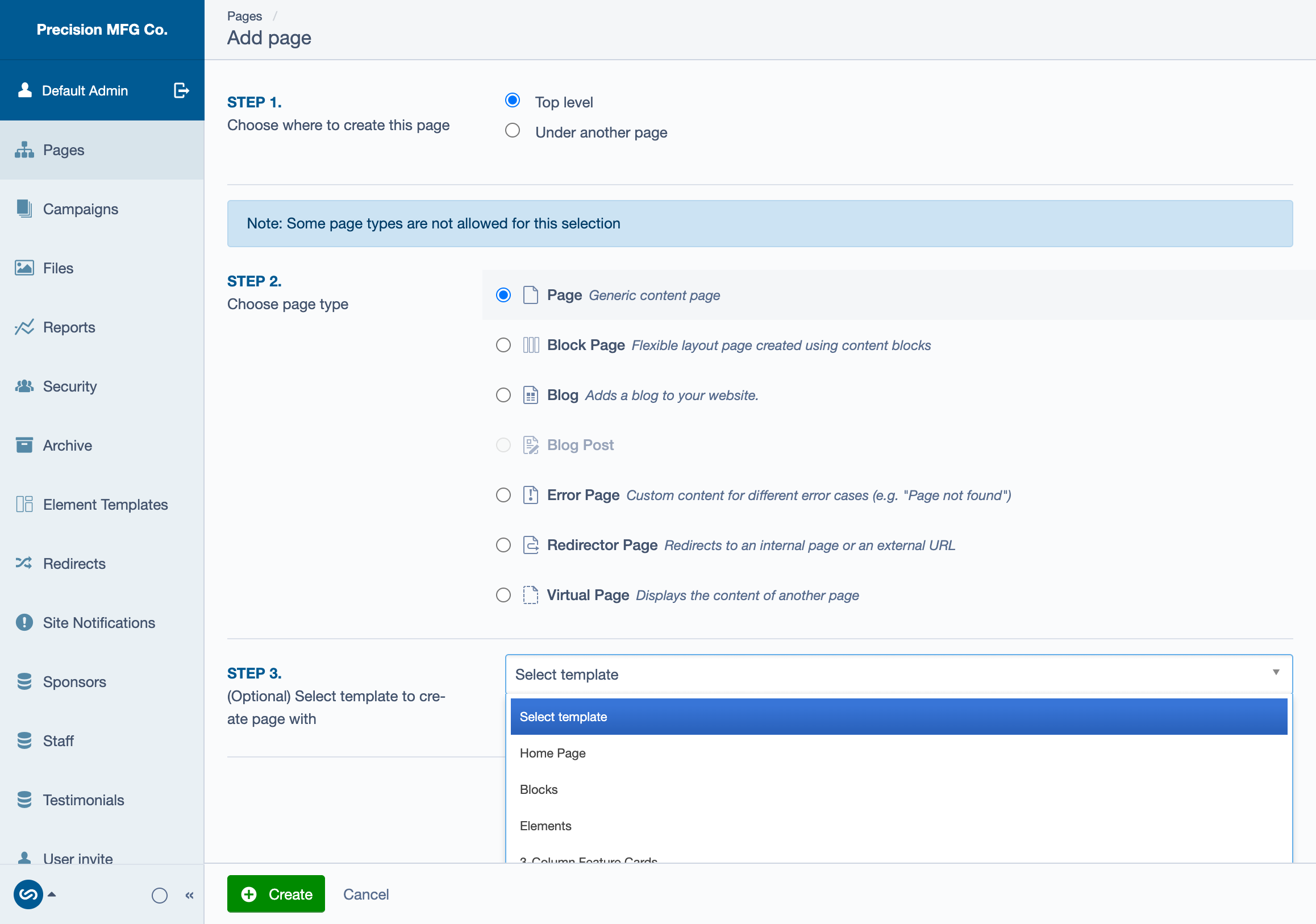
- Apply when creating a page: Choose a template from the dropdown in Step 3 during page creation.
- Apply to existing page: Go to Settings tab → More Options → "Apply Blocks Template" button.
- Create: Build your layout, then click "Create Blocks Template" in More Options to save it for reuse.
What are Element Templates?
Element Templates are "presets" or "saved snippets" of content. Instead of building a complex layout (like a 3-column feature row with icons and specific colors) from scratch every time, you can build it once, save it as a template, and reuse it anywhere on the site.
Viewing Available Templates
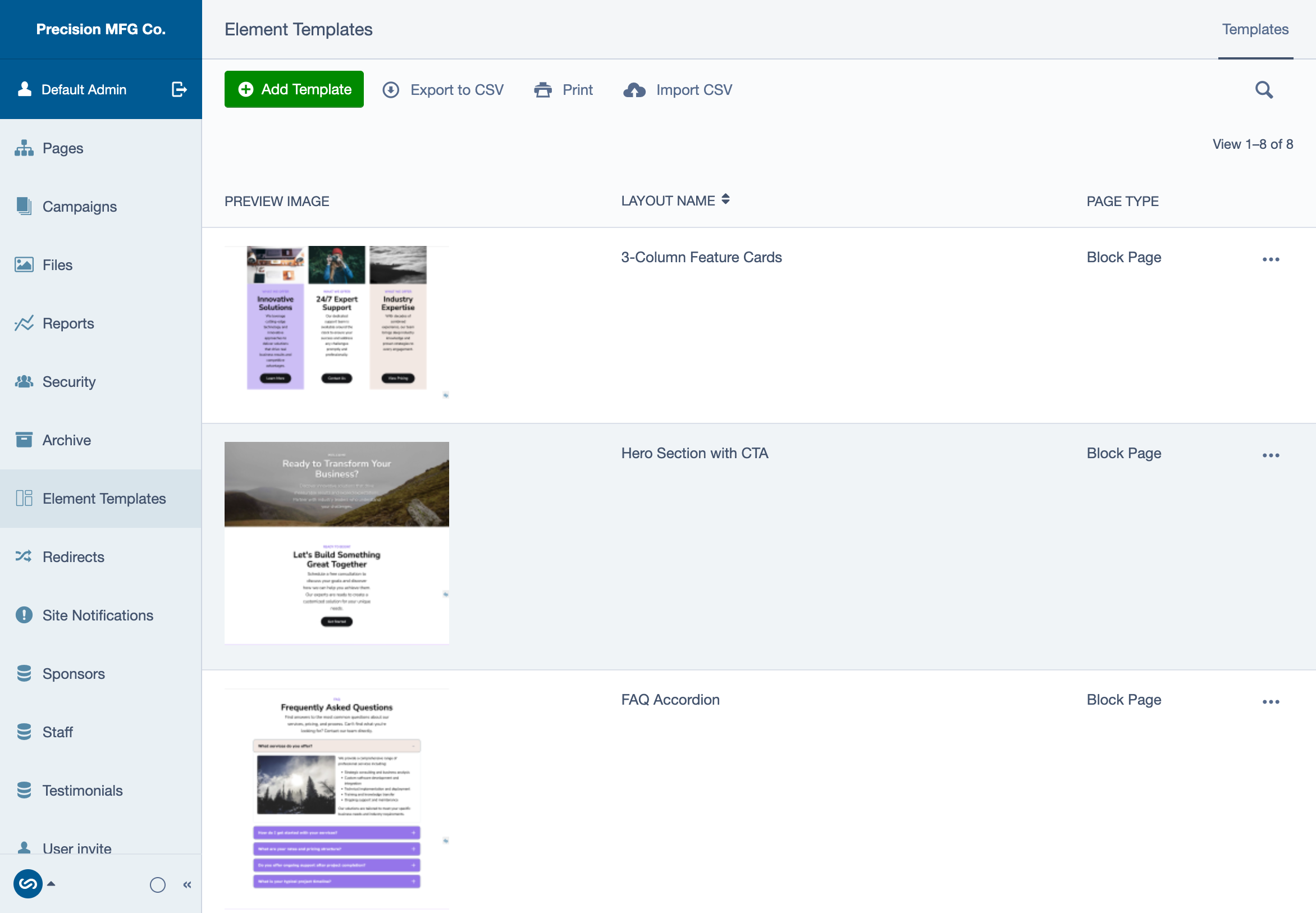
You can browse all available templates in the CMS: 1. Click Element Templates in the left-hand menu. 2. You'll see a table showing all available templates with their preview images and page types. 3. Tip: Click on any preview image to view a larger version, making it easier to see the layout details before selecting a template.
Understanding a Template Record
When you click on a template name, you'll see the template's configuration:
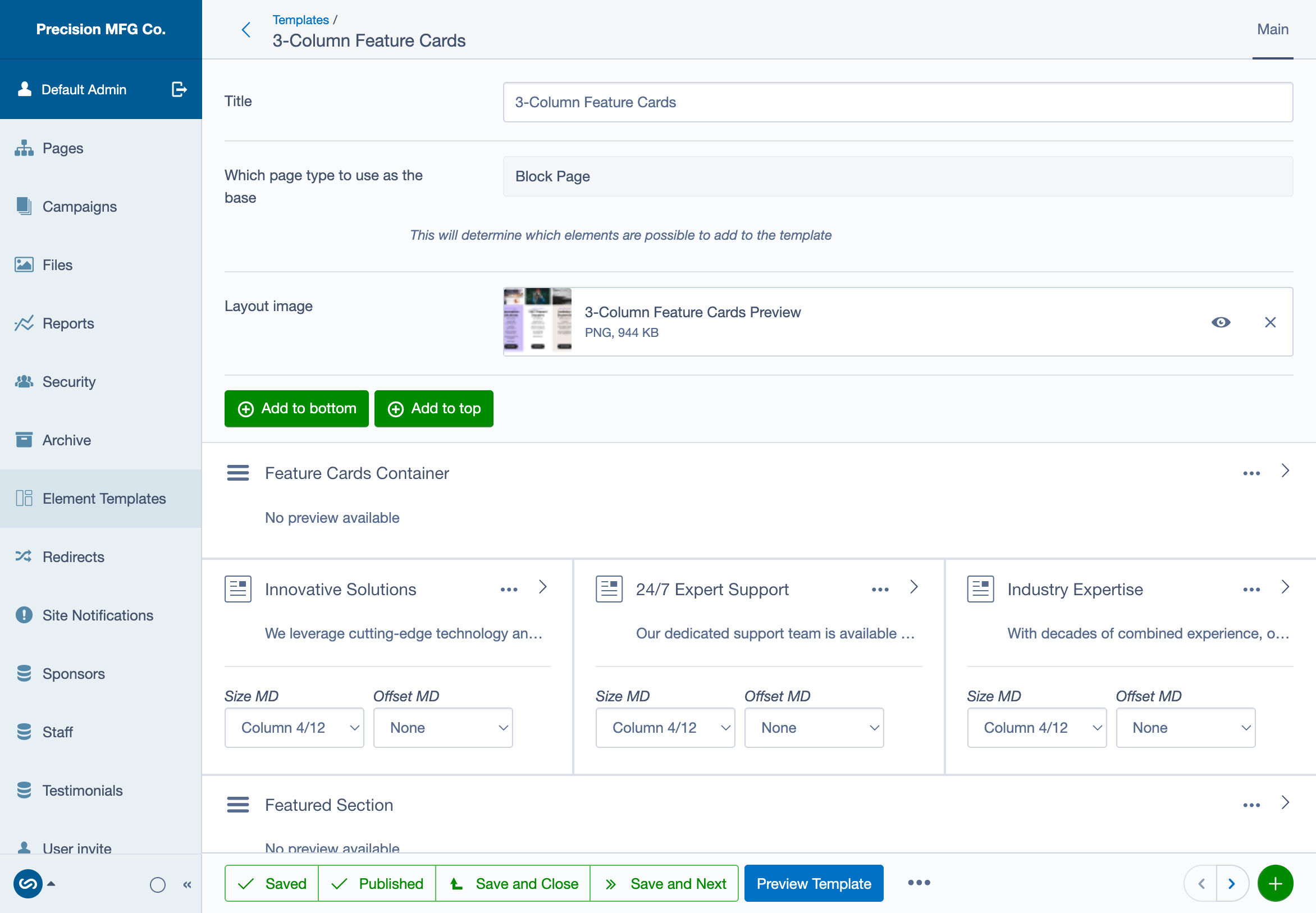
Each template record contains: - Title: The name of the template shown in dropdowns - Page Type: Determines which elements can be used (e.g., Block Page) - Layout Image: A preview screenshot of the template - Elements: The pre-configured layout that will be copied when the template is applied
Templates are essentially saved snapshots of page layouts that can be reused across your site.
Applying a Template to a New Page
When creating a new page, you can start with a pre-configured template:
- Click Add new in the Pages section.
- Complete Steps 1 and 2 (location and page type).
- In Step 3, select a template from the dropdown.
- Click Create.
- The new page will be created with all the template's elements already in place.
- Edit the content: The elements are now independent copies. Changes you make will not affect the original template or other pages using it.
Applying a Template to an Existing Page
You can add a template's elements to a page that already exists:
- Open the page you want to edit.
- Go to the Settings tab.
- Scroll down to find the Select Template to Apply dropdown.
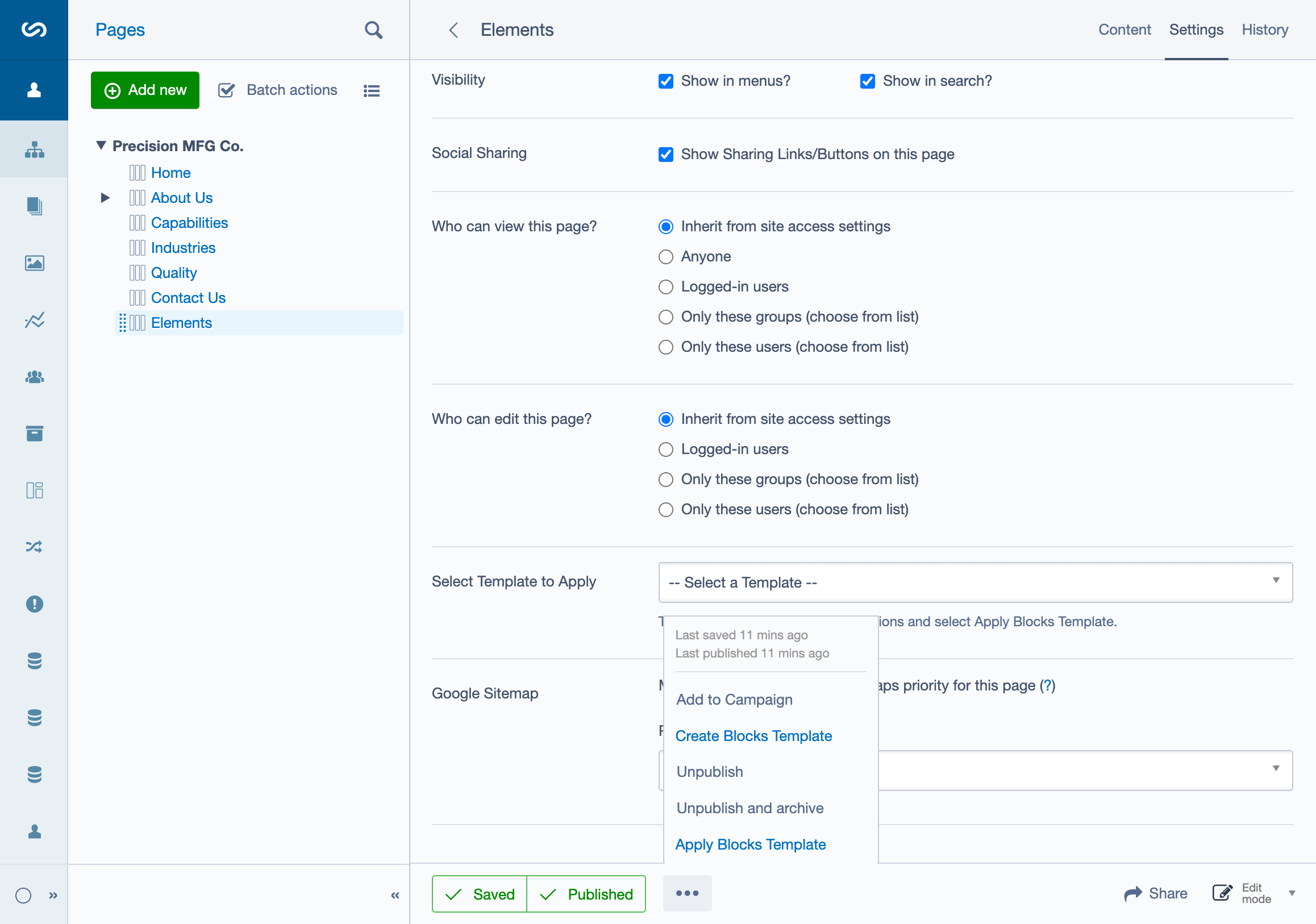
- Select your desired template from the dropdown.
- Click the More Options (•••) button at the bottom right.
- Click Apply Blocks Template.
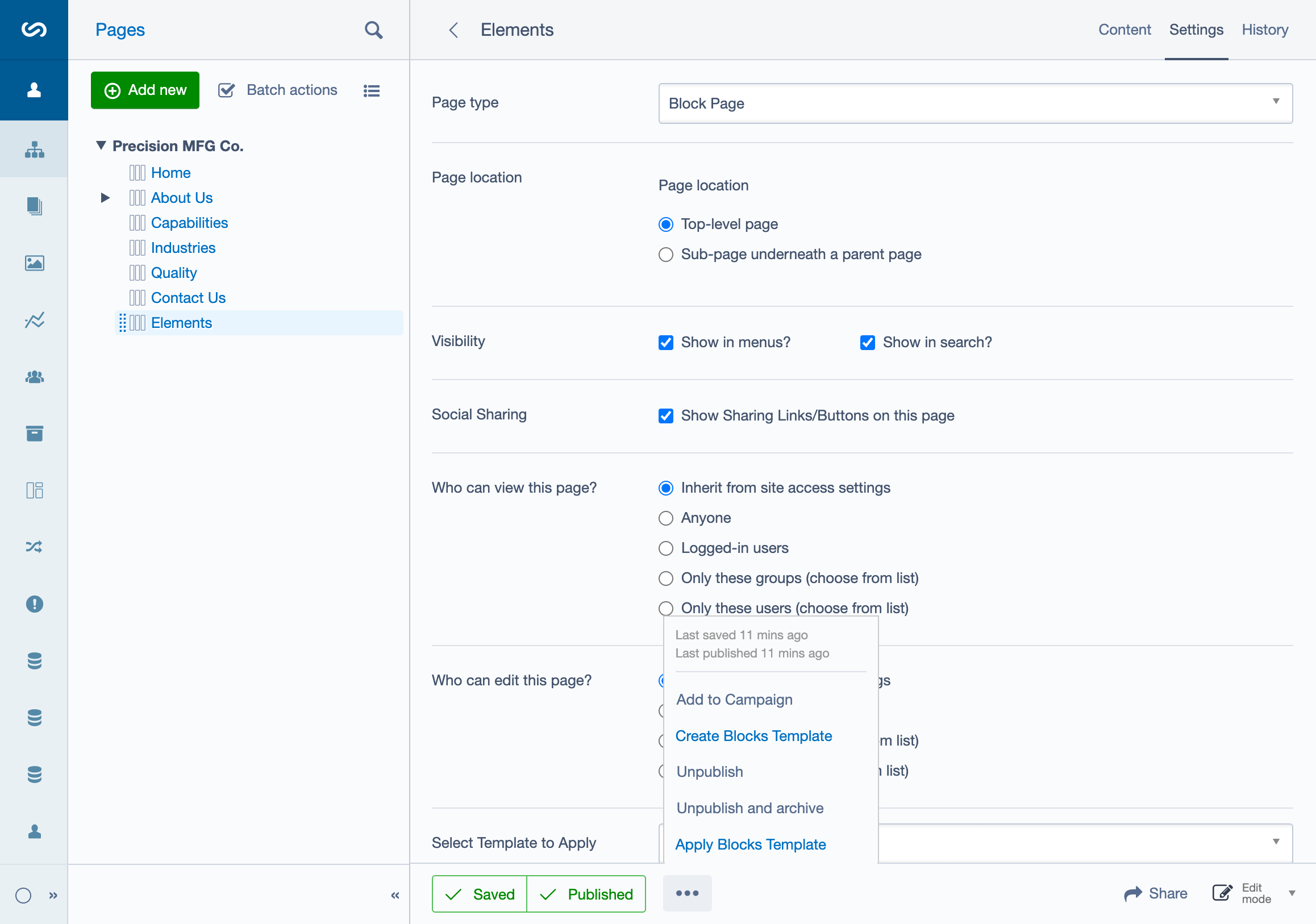
- The template's elements will be added to your page's content area.
- Go back to the Content tab to see and edit the new elements.
Note: The template description suggests this workflow needs UX improvement. If you have feedback about this process, contact your administrator.
Creating a New Template
If you have built a layout you want to reuse:
- Build your page layout exactly as you want it to appear.
- Go to the Settings tab (or keep editing on Content tab).
- Click the More Options (•••) button.
- Click Create Blocks Template.
- You'll be taken to edit the new template where you can:
- Set a descriptive Title (e.g., "3-Column Service Features")
- Add a Layout Image for preview
-
Review the copied elements
-
Click Save to make the template available to all content editors.
Administrator Note: Template creation may be restricted by permissions. Contact your system administrator if you need this capability.
When to Use Templates
- Complex Layouts: Rows with specific column widths and background colors.
- Recurring Components: A "Call to Action" band that appears at the bottom of every service page.
- Standardized Formatting: Ensuring all "Staff Profiles" look exactly the same.
- Onboarding: Help new content editors get started quickly with proven layouts.