Chapter 13: Footer Locations
Quick Steps
- Go to Settings → Contact & Locations.
- Edit the Primary Location fields in the Company Details tab.
- Manage extra offices in the Additional Locations tab.
- Use the Show in Footer toggle to control visibility.
Overview
Your website can display your business location(s) in the footer. This is managed in the Settings area to ensure the data is structured correctly for search engines (Google Maps, etc.).
Navigating to Contact & Locations
The contact and location information has been organized into its own top-level tab for easier access: 1. Navigate to Settings in the left menu. 2. Click the Contact & Locations tab. 3. You'll see several sub-tabs: - Company Details - Primary business information - Map & Coordinates - Geographic data - Opening Hours - Business hours - Additional Locations - Multiple office locations - Social Profiles - Social media links
1. The Primary Location
This is your main headquarters.
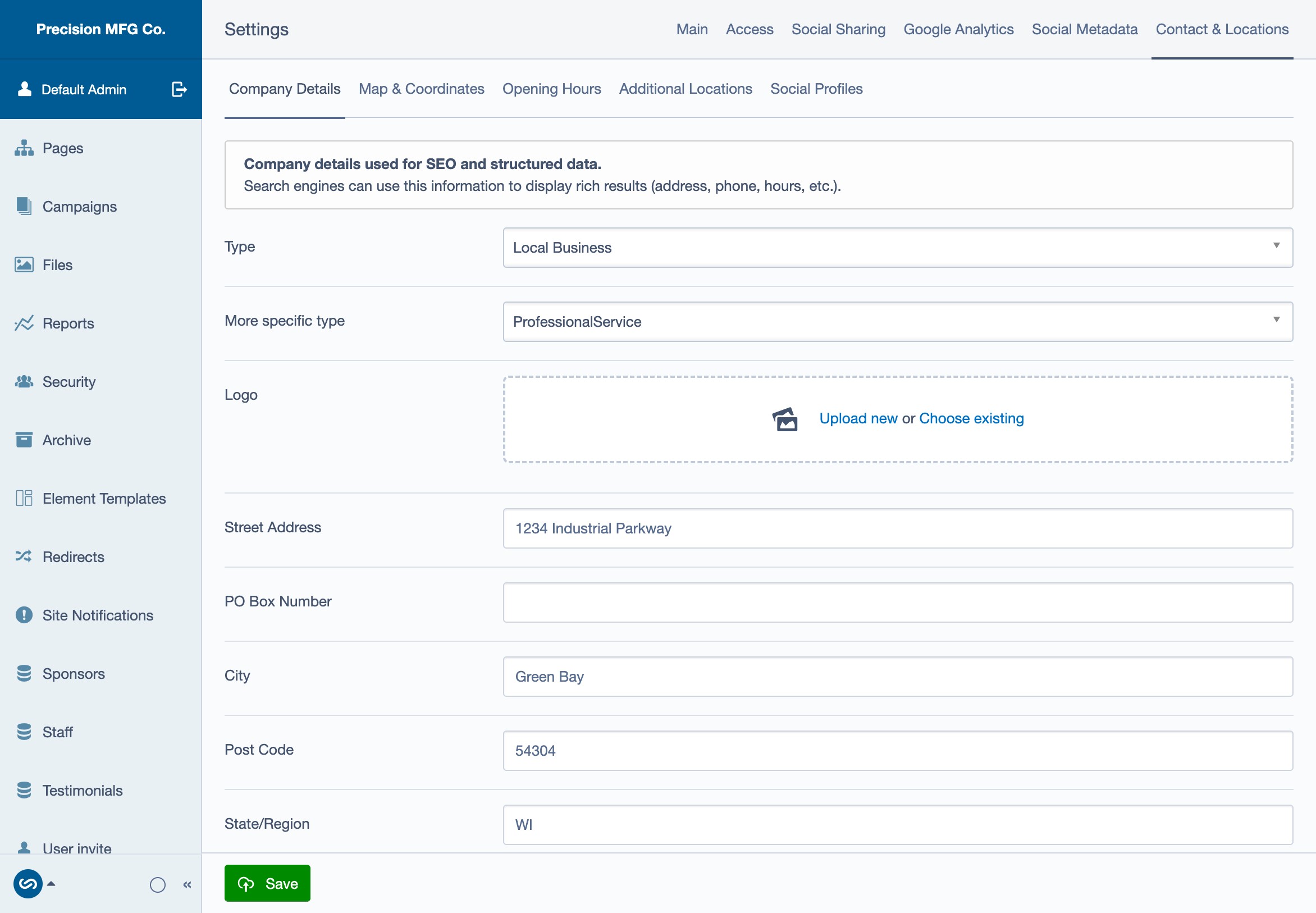
- In Settings → Contact & Locations, you'll start on the Company Details tab.
- Fill in the main fields:
- Organization Type (e.g., Local Business, ProfessionalService)
- Logo
- Street Address
- City, Post Code, State/Region, Country
- Phone Number
- Email Address
- This information is typically displayed automatically in the footer.
2. Additional Locations
If you have multiple offices, you can add them here.
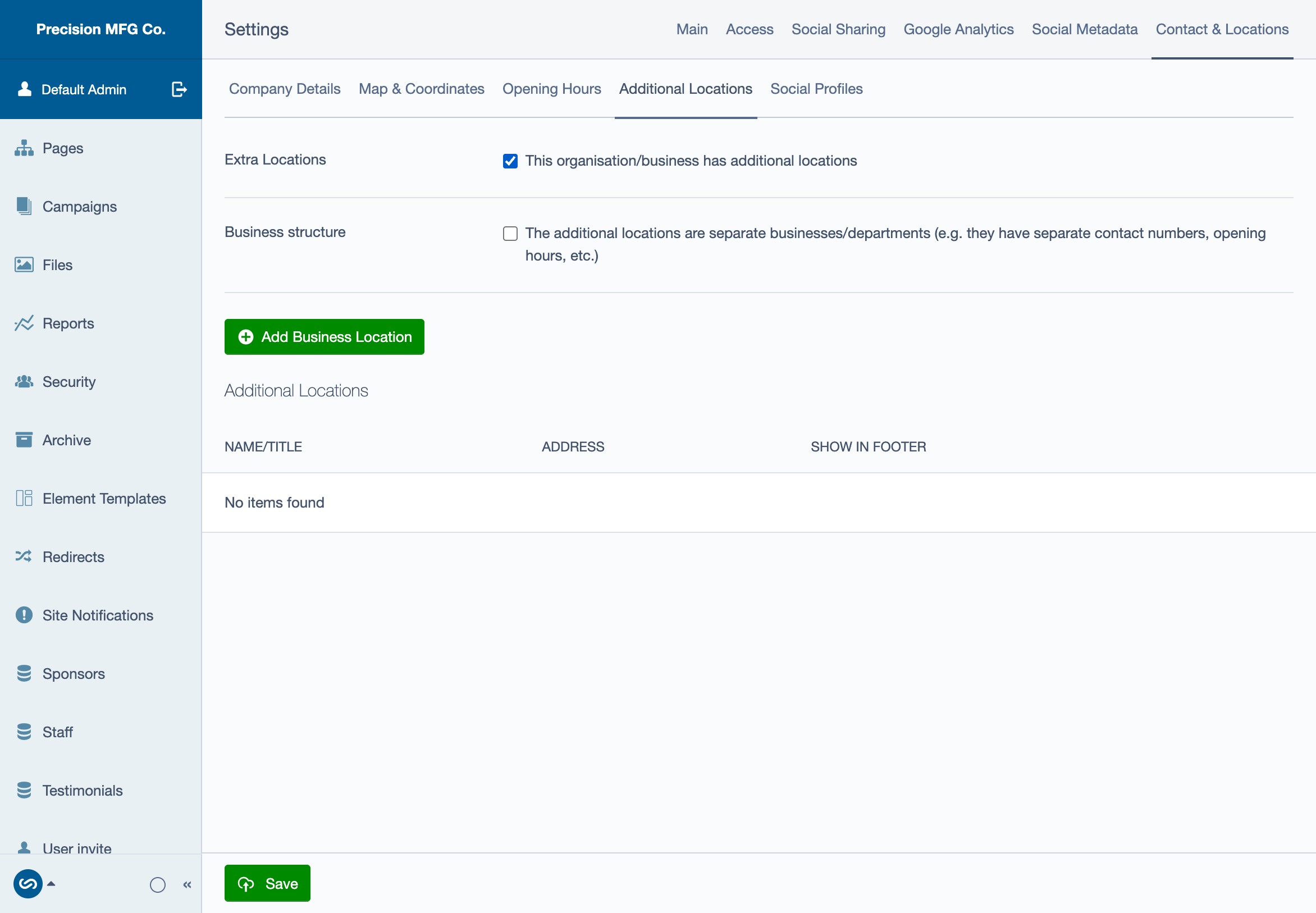
- Click the Additional Locations tab.
- Check the box "This organisation/business has additional locations".
- Click Add Location to create new branch office entries.
- Fill in the details for each branch office.
"Show in Footer"
For each additional location, there is a checkbox labeled Show in Footer. - Checked: The location will appear in the website footer alongside your primary address. - Unchecked: The location is stored for SEO/Microdata purposes but won't clutter the visual footer.
Address Only vs. Separate Entity
There is an important distinction when adding a location: - Address Only: If you only fill in the address fields, it is treated as just another door to the same business. - Separate Entity: If you fill in specific Phone, Email, or Opening Hours for this location, it is treated as a distinct entity. - Tip: Use this if your branch offices have their own direct phone lines or different operating hours.
Ordering
The order of locations in the footer is generally fixed (Primary first, then Additional). If you need to reorder them, you may need to remove and re-add them in the desired sequence.