Chapter 1: Orientation
Quick Steps
- Navigate to
/adminto log in. - Use the left-hand menu to switch between Pages, Files, and Settings.
- Click the SilverStripe logo or your profile icon to log out.
Logging In
To access the Content Management System (CMS), add /admin to your website's URL (e.g., www.yourwebsite.com/admin). Enter your email address and password.
The CMS Interface
Once logged in, you will see the main interface, which is divided into three main areas:
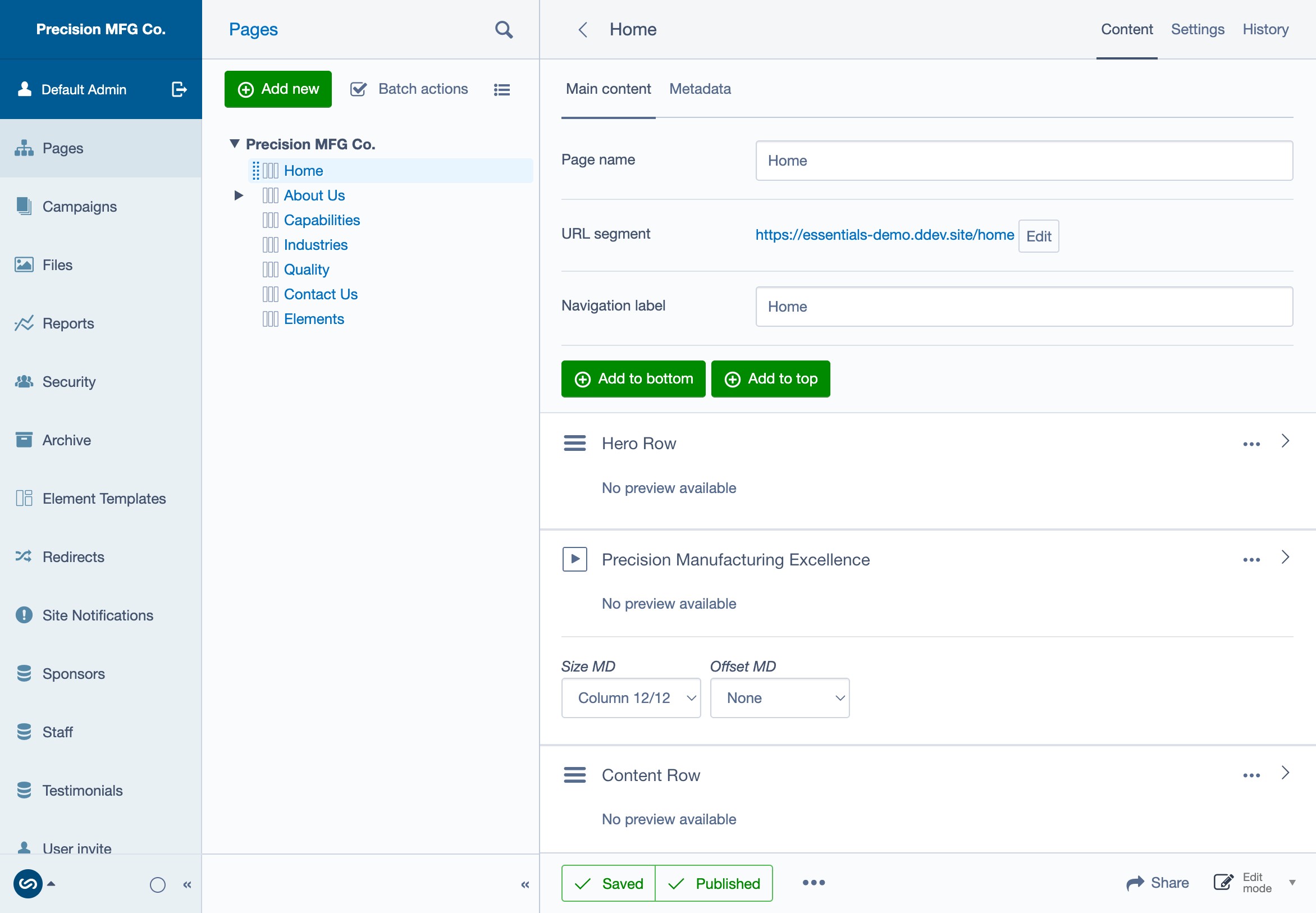
1. The Main Menu (Left Sidebar)
This is your primary navigation tool. - Pages: Where you manage the site structure and edit page content. - Files: Your media library for images and documents. - Settings: Site-wide configurations (footer links, social media, etc.). - Security: User management (usually for admins only). - Reports: Site reports (broken links, etc.).
2. The Editing Pane (Center)
This is where you do the actual work. When you click on a page in the "Pages" section, this area loads the editing form for that page.
3. The Preview Pane (Right - if enabled)
In some views, you can see a split-screen preview of the page you are editing. You can toggle this view using the "Preview" button at the bottom of the screen.
Navigation Tips
- Breadcrumbs: Use the breadcrumb trail at the top of the editing pane to navigate back up the site tree.
- Search: Use the search bar in the "Pages" or "Files" section to quickly find content.